

Enhance Video Calls with Free Tempe Virtual Backgrounds for Zoom
While in-person meetings remain limited due to COVID-19, bring a taste of Tempe's warm sunshine to your video conferences.
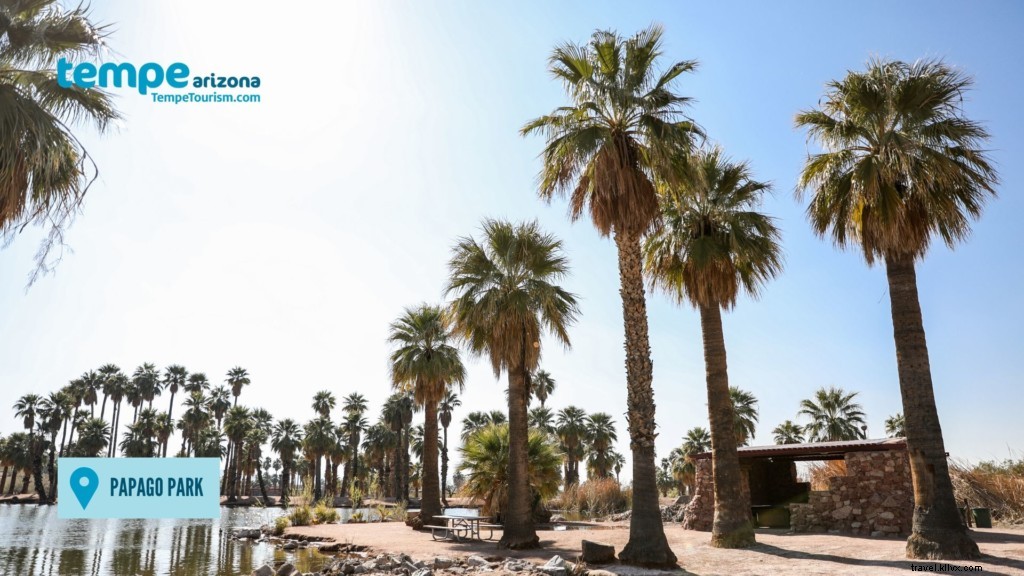
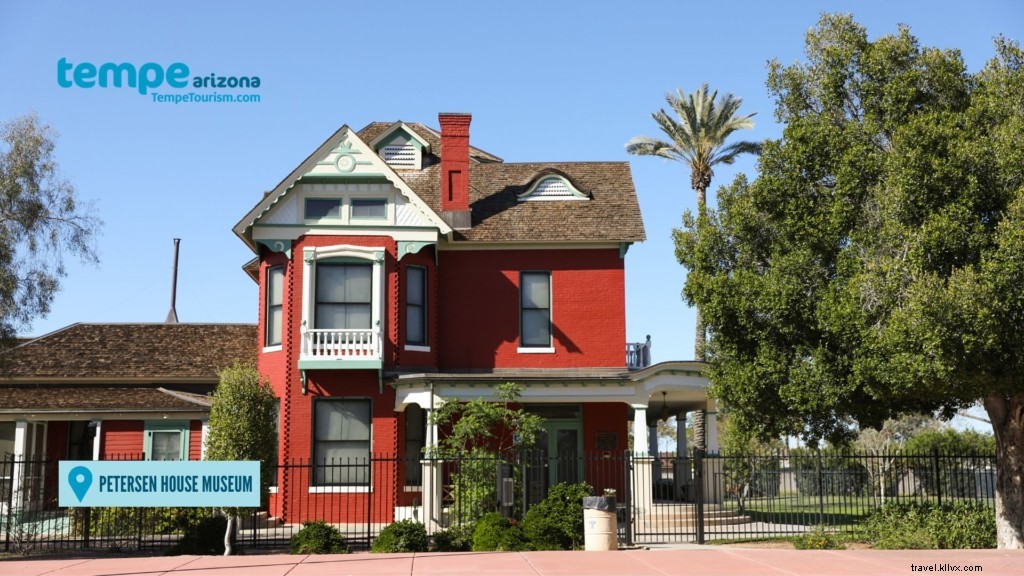
The Tempe Tourism Office has curated a collection of professional virtual backgrounds compatible with Zoom and other video platforms.
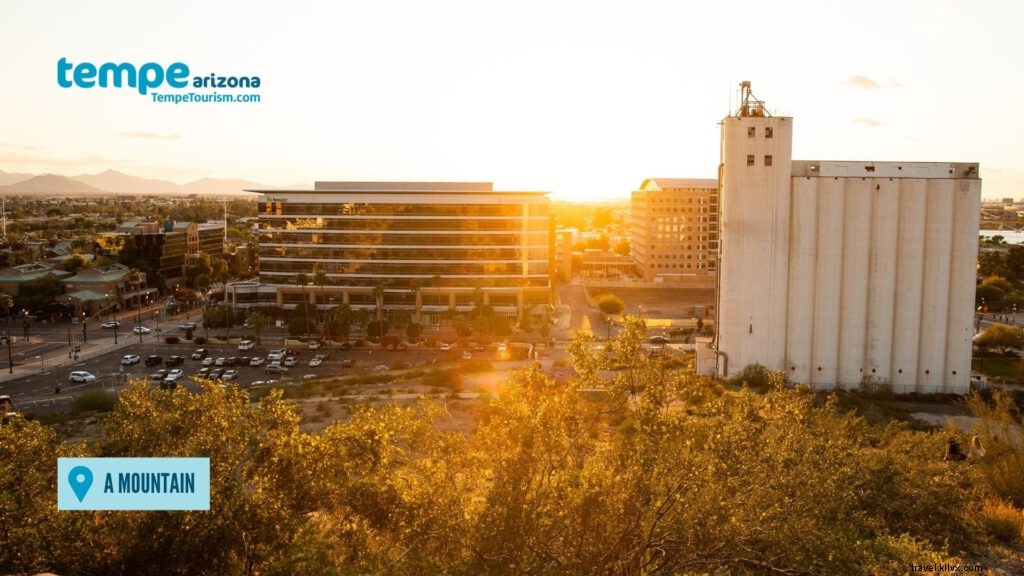
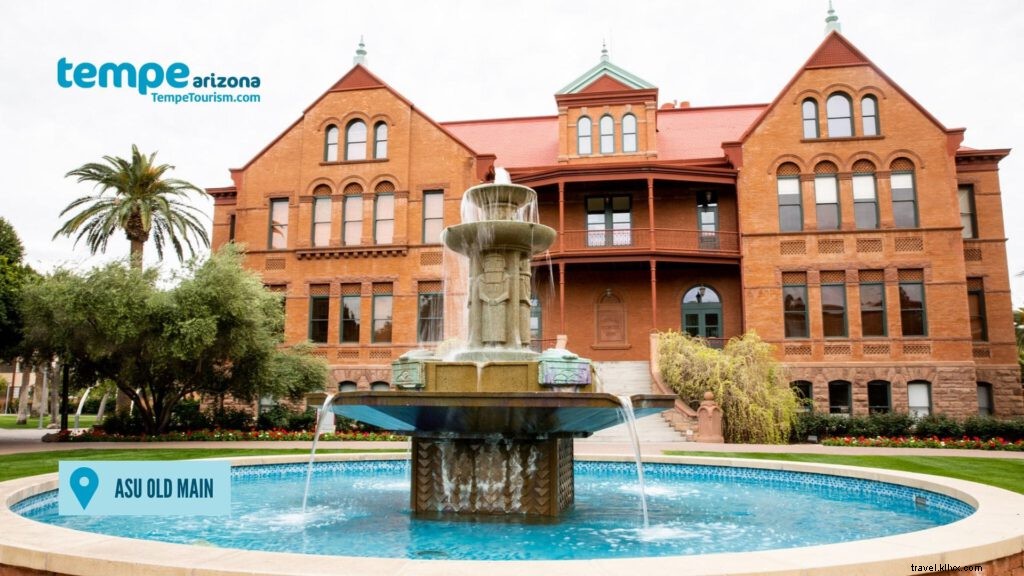
These stunning images showcase Tempe's iconic landmarks, including 'A' Mountain, Mill Avenue, and Old Main on the ASU Tempe campus.



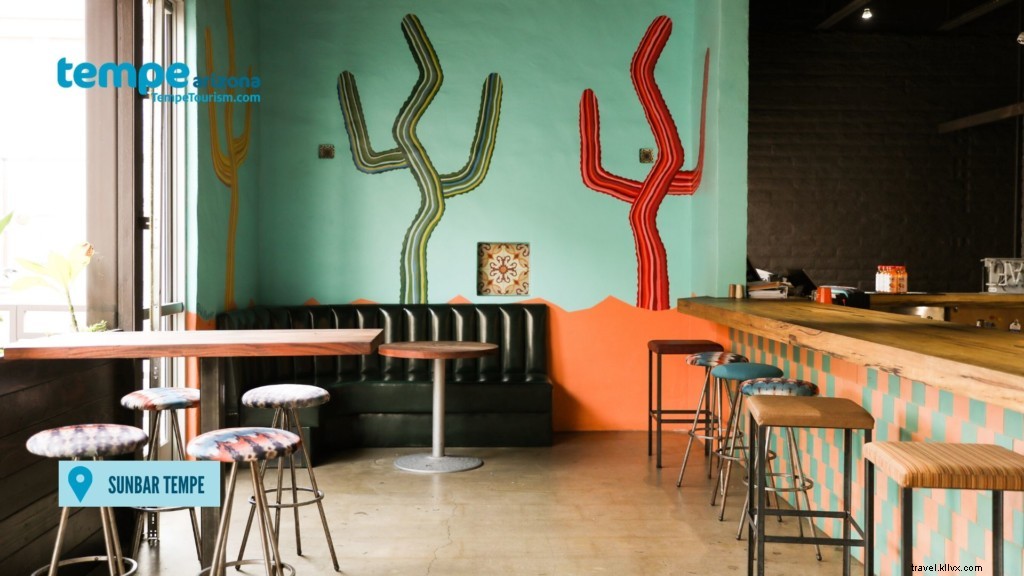


How to Set Up Virtual Backgrounds in Zoom
Step 1: Download the backgrounds to your computer by right-clicking an image and selecting 'Save image as,' or access them via Dropbox.
Step 2: Launch Zoom, navigate to Settings > Virtual Background. Click the + button under the video preview to upload your background. Uncheck 'Mirror my video' for best results.

In a meeting: Click the upward arrow (^) next to 'Stop/Start Video,' select 'Choose Virtual Background,' then click + to upload. Uncheck 'Mirror my video.'
Select your favorite Tempe background and elevate your meetings!
Best Practices for Optimal Results
- Opt for bright, even lighting in your space.
- Use a solid-color wall behind you.
- If needed, enable 'Manually pick the color of the background,' hover over your wall, and click to sample the color. Adjust your webcam angle for accuracy.

For detailed guidance, refer to Zoom's virtual background support page.
Share your setup! Screenshot yourself with a Tempe background and tag us with #togethertempe.