

Free Myrtle Beach Zoom Backgrounds: Stunning Images & Videos for Virtual Meetings

Bring the Beach to Your Zoom Meetings!
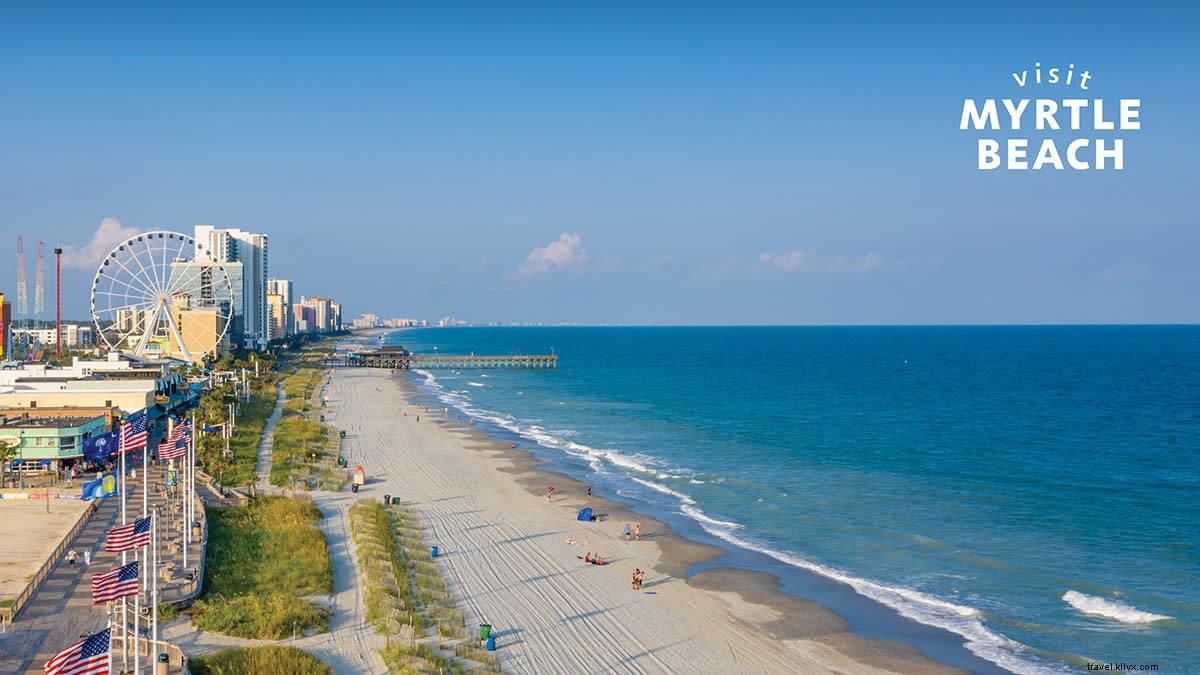
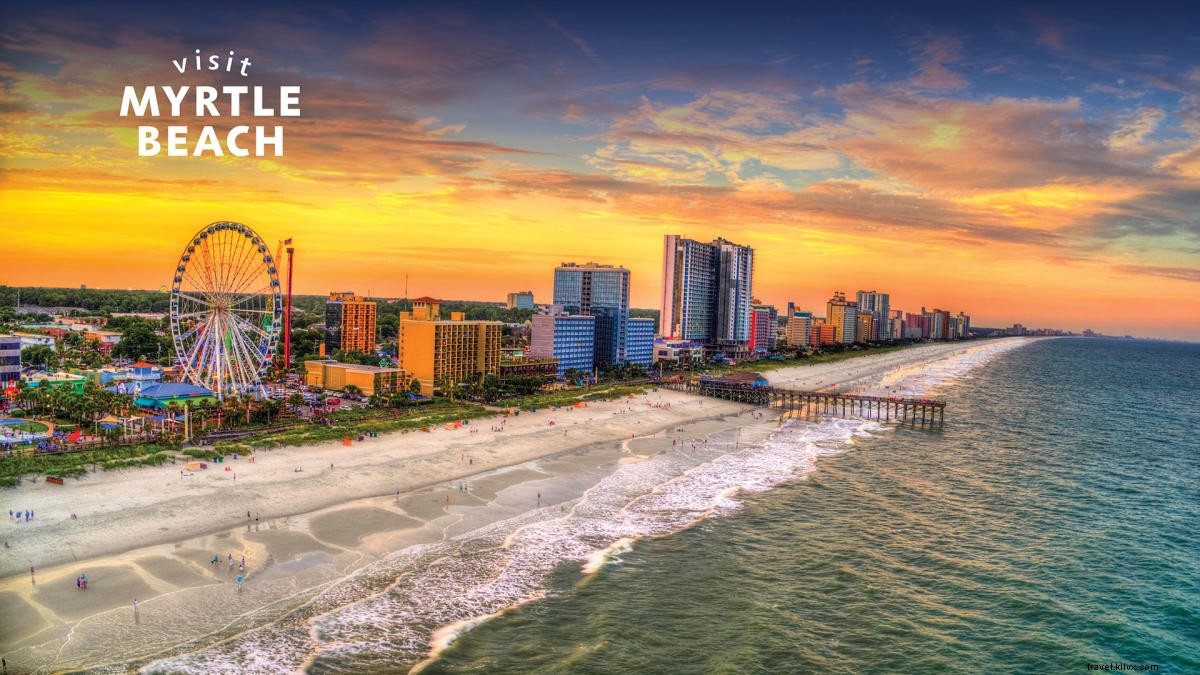
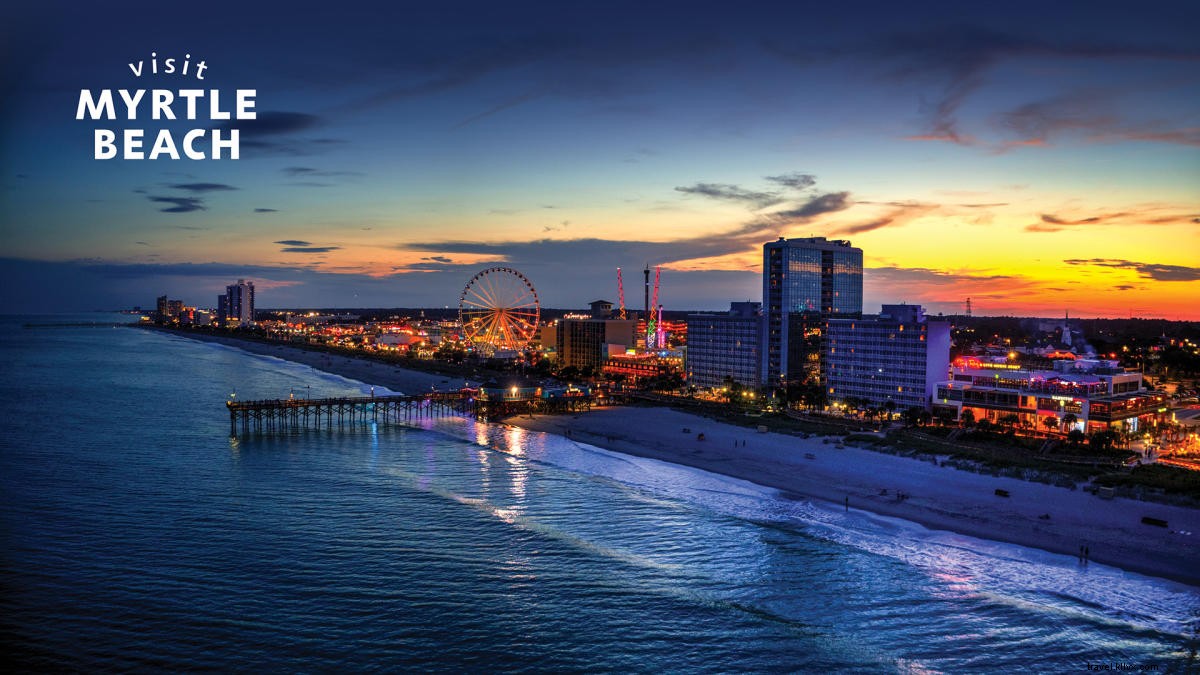
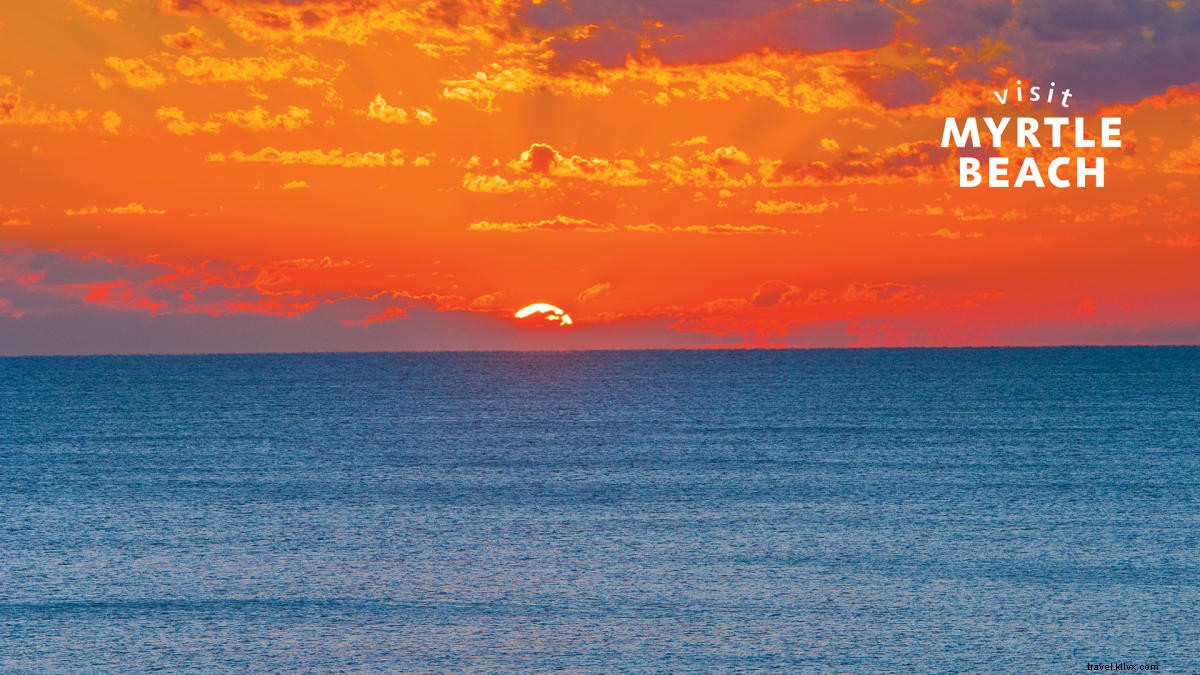
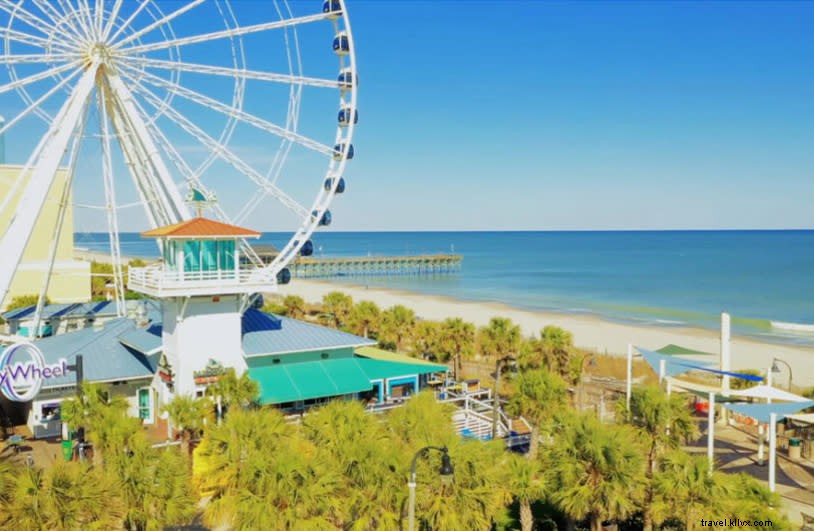
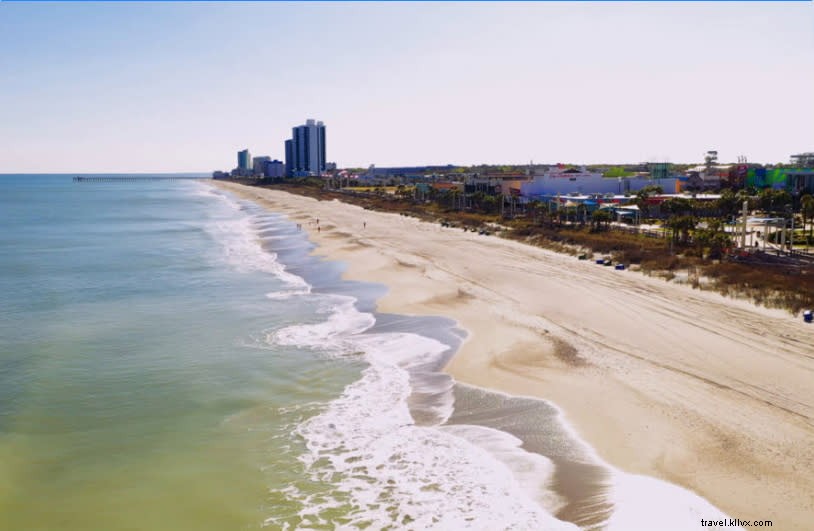
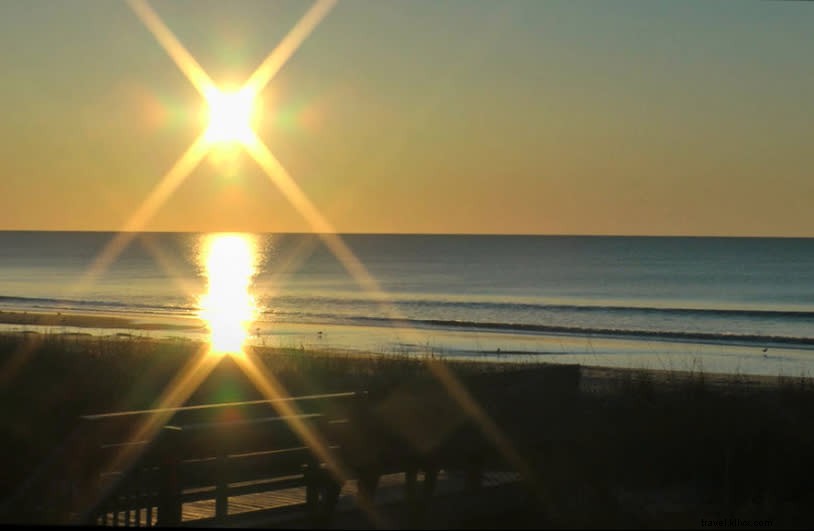
Ever wished you could escape to the beach during a virtual meeting? Now you can! Elevate your next Zoom call, happy hour, or group chat with our official custom Myrtle Beach backgrounds—featuring breathtaking images and videos.
Easy Steps to Set Your Zoom Background:
- Select your favorite Myrtle Beach image or video from below and download it to your device. (Tip: Update to the latest Zoom app for video support.)
- Launch Zoom and sign in on your computer or mobile device.
- Go to Settings (gear icon) > Virtual Background, or click the arrow next to "Start Video" during a meeting.
- Select "Choose Virtual Background," then click the + icon to upload your image or video.
To Set as a Zoom Room Background:
- Log in to Zoom web portal.
- Navigate to Room Management > Zoom Rooms.
- Click Account Settings > Account Profile tab.
- Under Background Image for Zoom Rooms, upload your image and disable "Mirror my video."
For comprehensive instructions and video tutorials, visit Zoom's official virtual background guide.
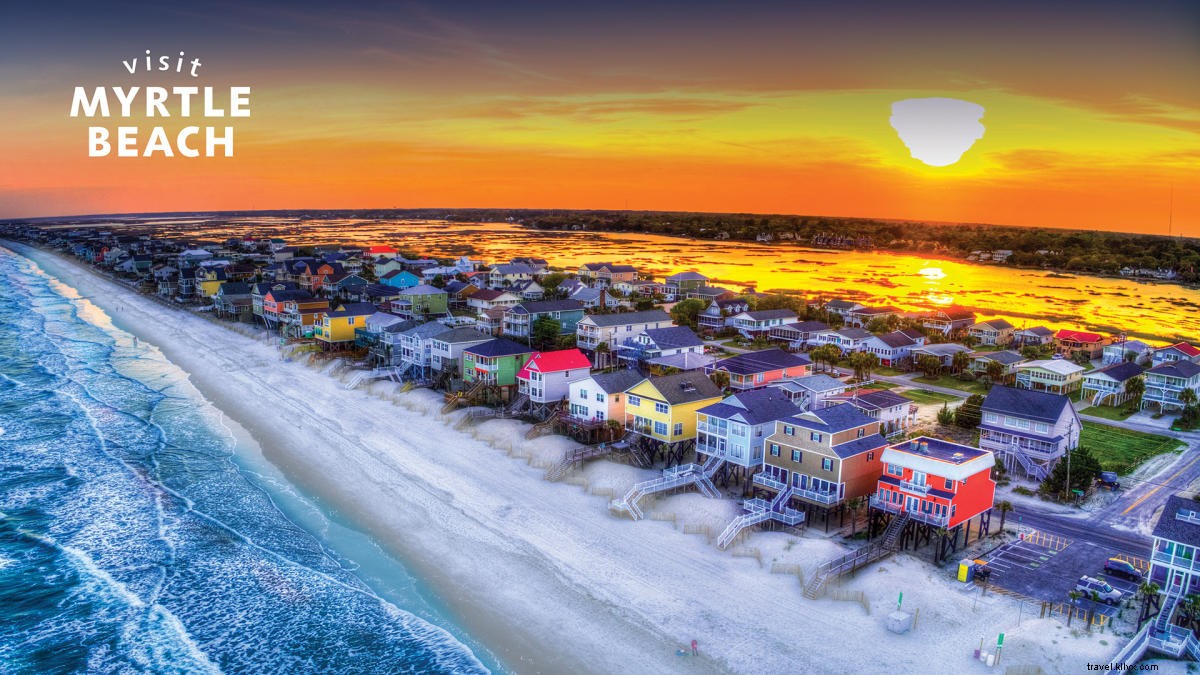
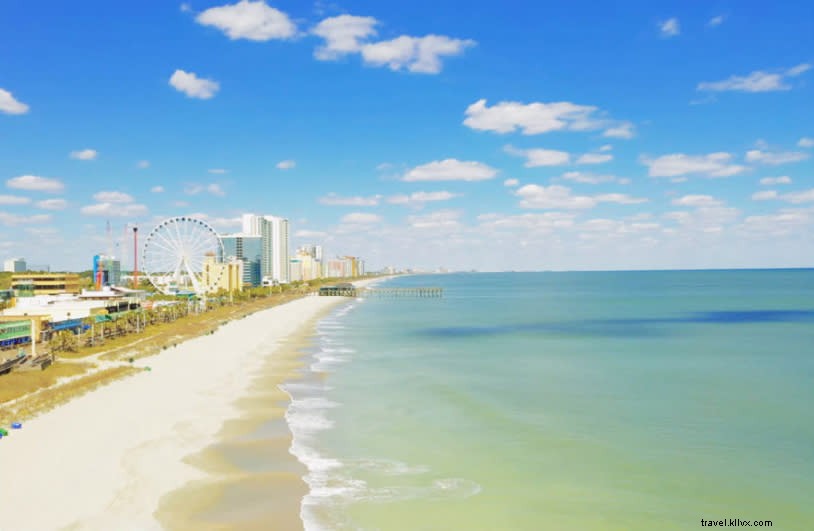
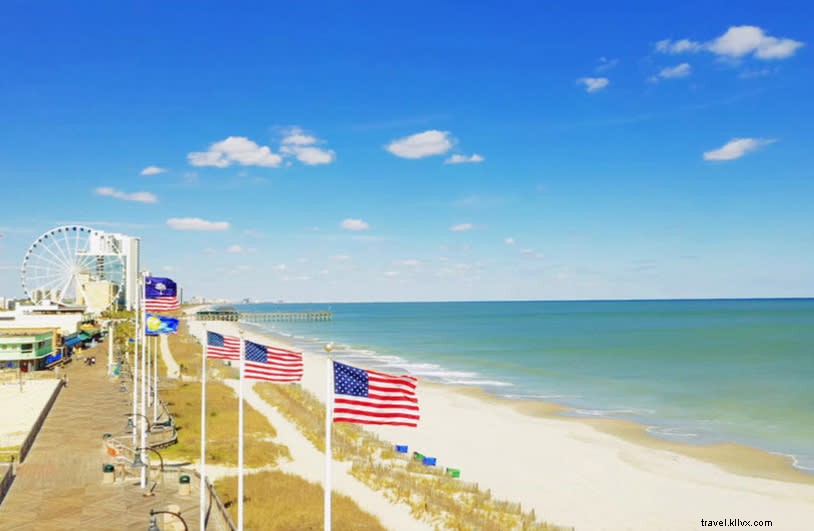
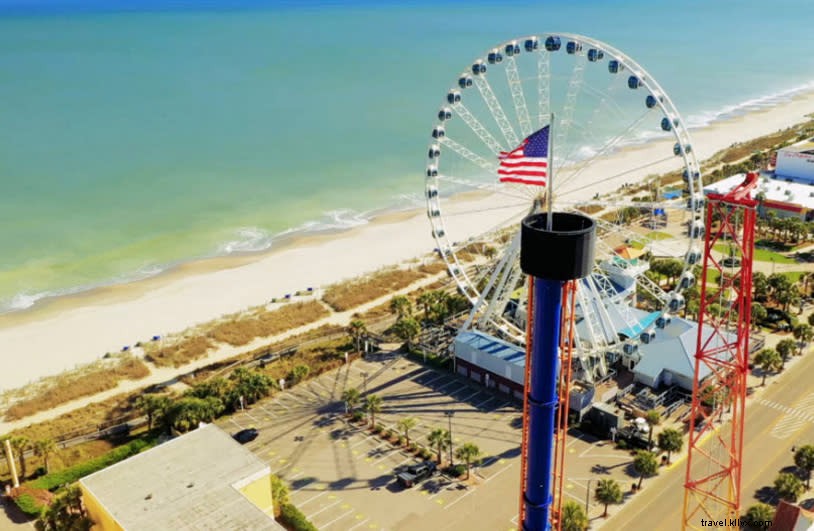
Click the images below to download. Share your beachy Zoom setup by tagging us @MyMyrtleBeach!
Myrtle Beach Static Zoom Backgrounds
Click to download or view all images.

Myrtle Beach Video Zoom Backgrounds
Click the image, then the Download button (top right).

Enjoy Free Virtual Myrtle Beach Jigsaw Puzzles: Family Fun from Visit Myrtle Beach
Virtual Tour of Myrtle Beach: Live Beach Cams, Attractions, and Entertainment from Home